
Conversational · Telegram
Accept payments right inside Telegram with @miaposbot — no apps, no new devices, no leaving the conversation with your customer.
What it is and why
@miaposbot is the official miaPOS bot on Telegram. You type a short command in any chat (a DM with a customer, a group chat, a channel) — the customer gets a Pay button and checks out through their bank's secure page.
Why it works this way:
- The customer installs nothing — it's their bank's standard checkout page.
- You open nothing — everything stays in the chat where you already talk.
- It works in any Telegram chat, even one the bot has never been added to.
Step 0 — One-time activation
You link your Telegram to your seller account once. The bot goes into your bank's system and looks you up by your phone number.
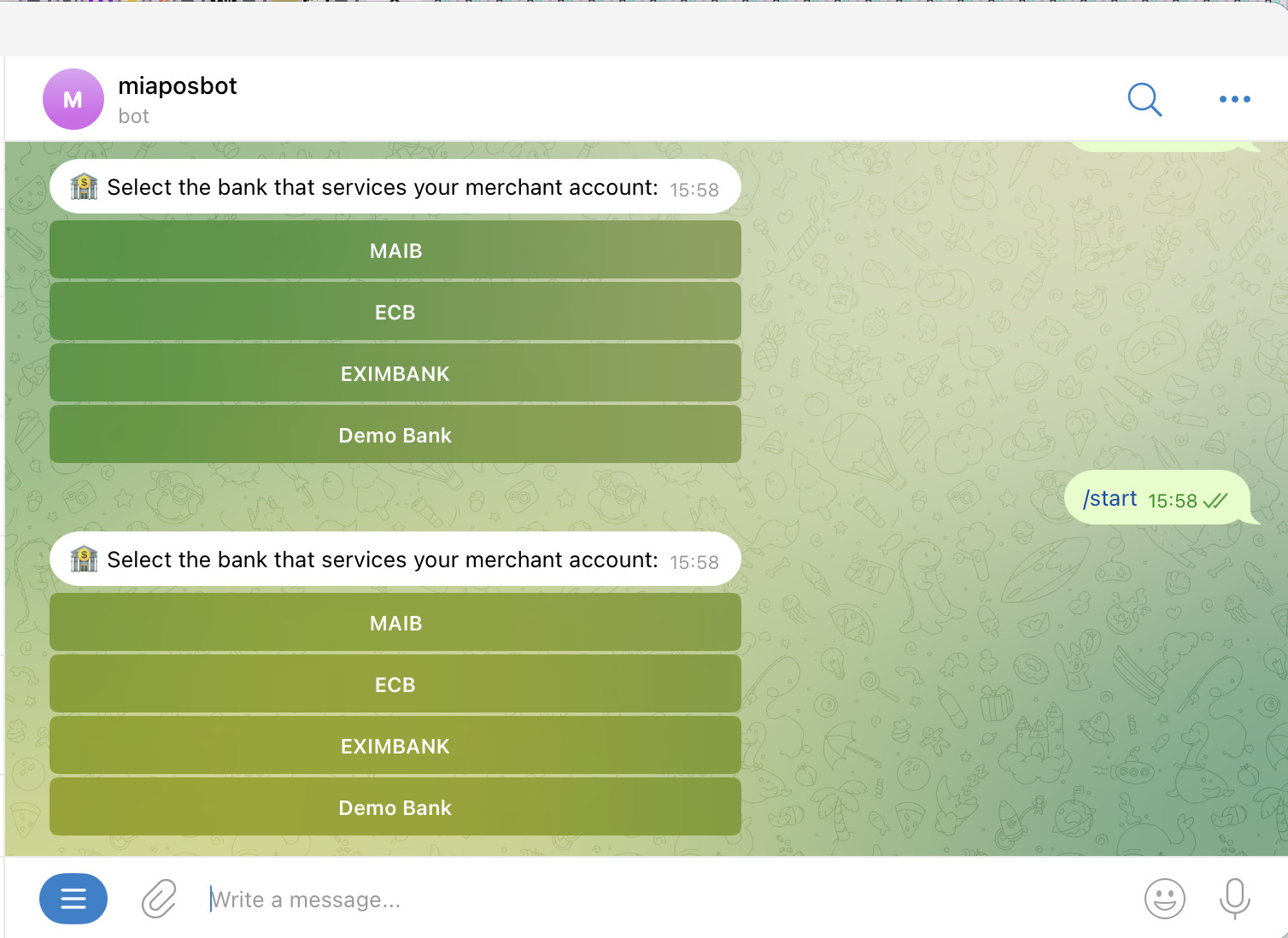
- Open the chat with @miaposbot and send
/start. - The bot shows a list of banks — tap your bank. If your merchant only works with one bank, this step is skipped automatically.
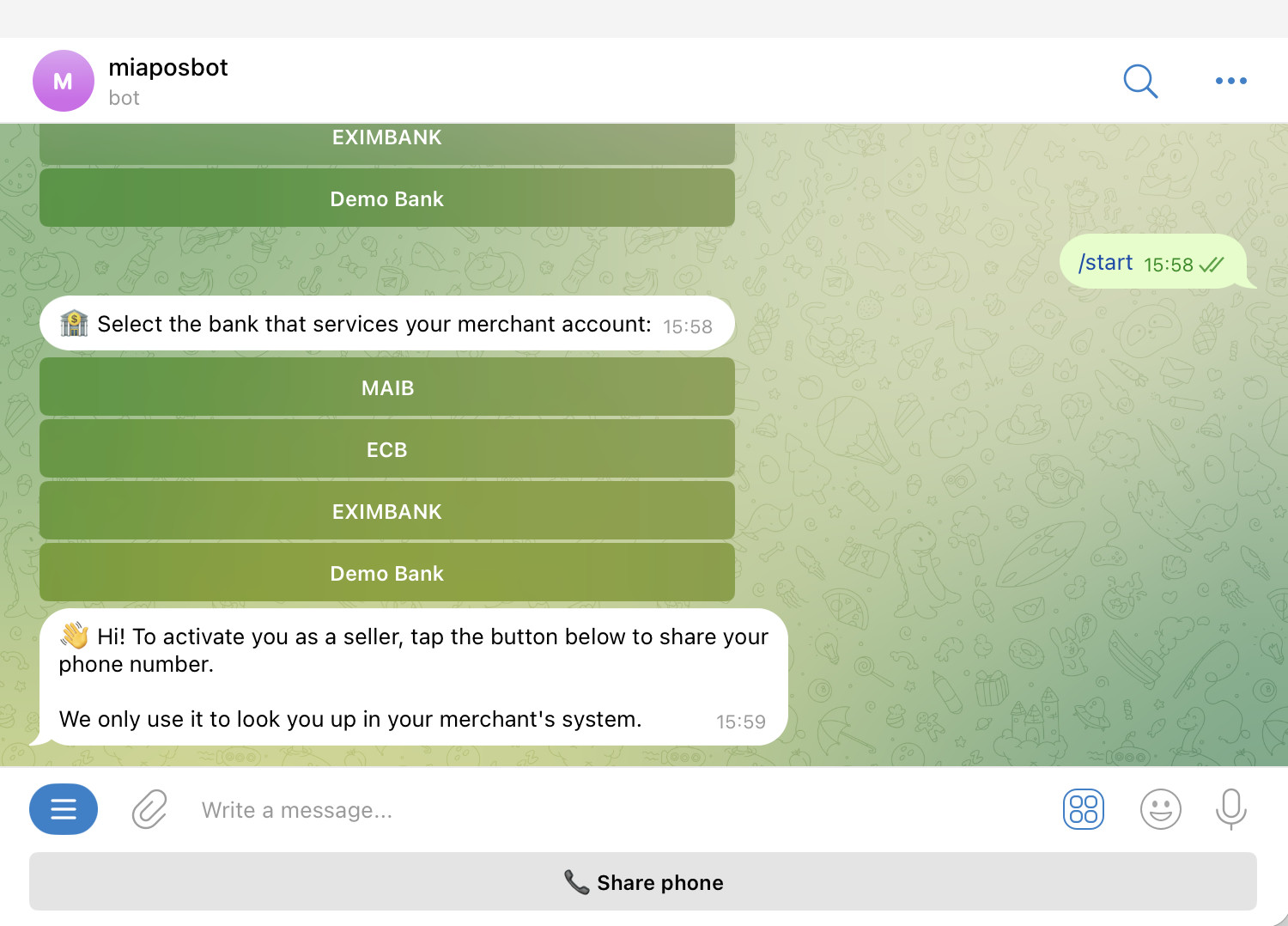
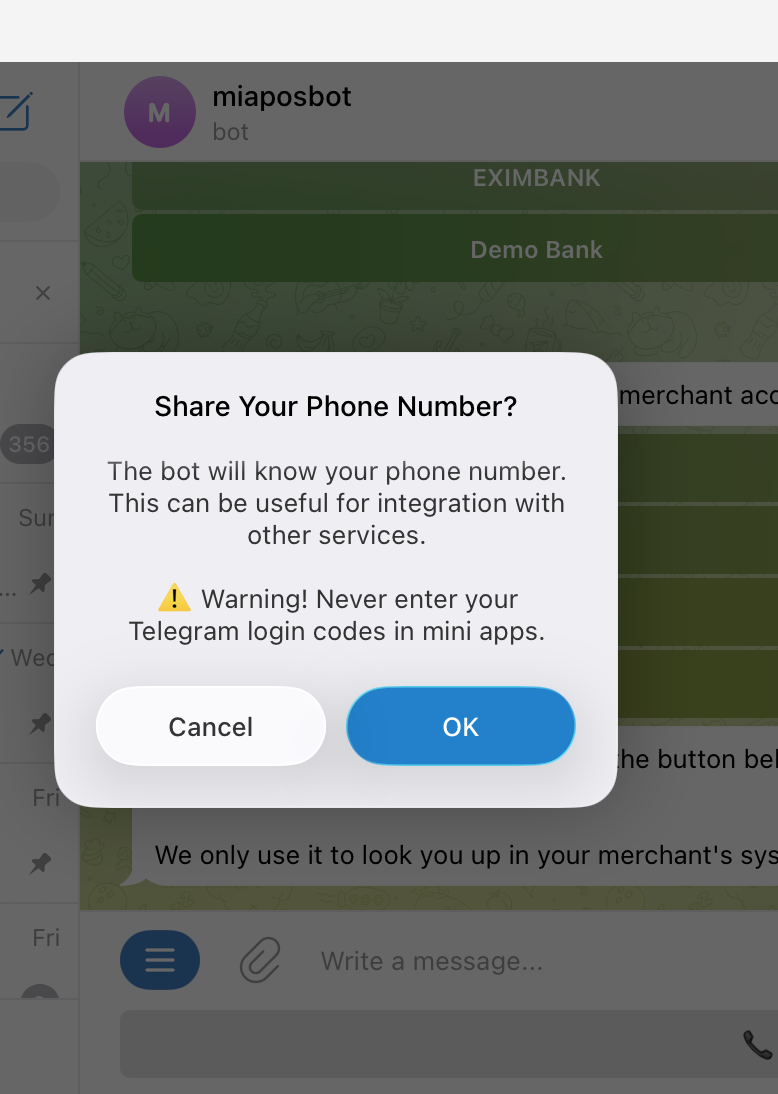
- Tap 📞 Share phone and confirm in Telegram's system dialog.
- Done — the bot replies "Activated as a seller of [merchant name]".
If the bot says "Phone not found" — ask your manager to add your phone in the Merchant Portal.
1) Pick your bank
After /start the bot shows the bank picker:
2) Share your phone
After picking your bank the bot asks you to share your phone number:
3) Confirm in Telegram
Telegram opens its standard system dialog — tap OK:
4) Activated
@miaposbot
  ✅ Activated as a seller of Cafenea SRL.
     Try: @miaposbot 100 coffee
The main scenario — inline mode
This is what the bot exists for. You type the command directly in the customer's chat (or in a group) — the bot doesn't join the chat, it just suggests the payment to you.
1. In the chat with your customer, start typing:
@miaposbot 100 coffee2. A payment preview appears above the keyboard (only you see it — the customer sees nothing yet):
┌─ @miaposbot suggestions ────────────────┐
│ 💳 Pay 100 MDL                          │
│    Cafenea SRL · "coffee"               │
└─────────────────────────────────────────┘
3. Tap the preview — the bot posts a payment card with a Pay button into the chat:
you (via @miaposbot)
  💳 Cafenea SRL
     100 MDL · coffee

  [    Pay    ]
4. Customer taps Pay → their bank's secure checkout opens → they pay.
5. The card updates itself to ✅ Paid or ❌ Failed — nobody has to refresh anything:
you (via @miaposbot)
  ✅ 100 MDL paid
     "coffee"
Command syntax
Format:
@miaposbot <amount> [currency] [description] [+phone | IBAN] [#tag]| Field | Required | Examples |
|---|---|---|
amount | yes | 100, 99.50, 10.00 |
currency | no (defaults to MDL) | EUR, USD, RON |
description | no | coffee, table 7, May invoice |
+phone | no | +37368881777 → request-to-pay to the phone instead of a link |
IBAN | no | MD24AG000... → request-to-pay to the account |
#tag | no | #table-7, #june — your own label for reporting |
Examples
| Command | What happens |
|---|---|
@miaposbot 100 | 100 MDL, no description |
@miaposbot 100 coffee | 100 MDL, description "coffee" |
@miaposbot 99.50 EUR lunch | 99.50 EUR, description "lunch" |
@miaposbot 250 +37368881777 | Push payment request to +37368881777 |
@miaposbot 50 coffee #table-7 | 50 MDL + your tag #table-7 |
Separator — a regular space. You can use;if you prefer (@miaposbot 100; coffee; #table-7).
In groups and channels
The inline command works in any Telegram chat where you can send messages:
- One-on-one with a customer — as described above.
- Group chat (e.g. a HoReCa order chat) — same flow.
- Channel where you are an admin.
The bot does not need to be in the group. It runs in Guest mode (Bot API 10.0) — it doesn't read anything in the chat, it just posts the payment card you selected from the inline preview.
DM mirror
Every time you create a payment in a group, the bot sends you a copy in DM — so you keep your own log even if the group is noisy:
@miaposbot → you in DM
  💳 Payment created via inline mode
     100 MDL · "coffee"
The final status is mirrored to your DM as well.
Payment status
The payment card edits itself in the chat as the result comes in:
| What you see | What it means |
|---|---|
| 💳 + Pay button | Waiting for the customer to act |
| ✅ Paid | Customer paid; funds settle per your bank's rules |
| ❌ Failed | Customer cancelled or an error occurred |
The same status arrives in your DM with the bot.
If something goes wrong
| Problem | Fix |
|---|---|
Bot doesn't reply to /start | Make sure you have a username set in Telegram (Settings → Username). The bot looks you up by @username. |
| "Phone not found" | Your manager needs to add your phone in the Merchant Portal. |
| "This account is already linked to another Telegram" | Contact your admin to unlink the old Telegram. |
| Inline preview doesn't appear | Check you typed exactly @miaposbot (with the @) and a space before the amount. |
| "⚠️ Service temporarily unavailable" | Wait a minute and try again. |
FAQ
Q: Does the customer need to install anything?
A: No. They tap Pay and their bank's secure checkout opens — the same page they'd see for any normal online payment.
Q: What about fees?
A: Exactly the rates agreed with your bank. The bot adds nothing.
Q: Where does the money land?
A: In the merchant account you're registered with — per your bank's rules.
Q: What if the payment goes through but the status doesn't update?
A: The card will refresh automatically once the bank confirms. If something hangs — that doesn't affect the money; it's already with the bank.
Q: What language does the bot reply in?
A: Whatever is set in your Telegram (RO / RU / EN).
Q: Is it safe in a group chat?
A: Yes. The bot runs in Guest mode — it doesn't read other messages, it just posts the card you picked from the inline preview.
Security
- The bot never sees card data — the customer enters it on their bank's secure page.
- The bot never sees your passwords — authorization is done via your phone number linked in the Merchant Portal.
- Every payment goes through your bank and is signed on their side — no one in the middle can change anything.
What else the bot does
This guide covers inline mode only. The bot also has other flows (direct /pay and /rtp commands in DM, history and #tag reports) — they'll appear in future versions of this guide.