
Activating your miaPOS terminal on SmartOne
A complete, step-by-step guide: from installing the apps on your SmartOne terminal to activating miaPos and accepting your first payment. The whole process takes about 10 minutes.
What you need before you start
- Internet connection (Wi-Fi active on the terminal).
- IDNO — your company's fiscal code (13 digits). You already know it, or find it in the welcome email from Finergy.
- Terminal ID — the terminal code (e.g. P01S0657). You can get it in two ways:
- from the email / label you received from Finergy, or
- directly on the terminal: Palm Payment → Settings → TMS → Terminal ID (see step 7).
Part 1 of 3
Install the apps
You need two apps on the terminal: MIA (the miaPos app that accepts payments) and Palm Payment (the module that links the terminal to the payment system). Both are installed from the built-in store SmartOne Applications.
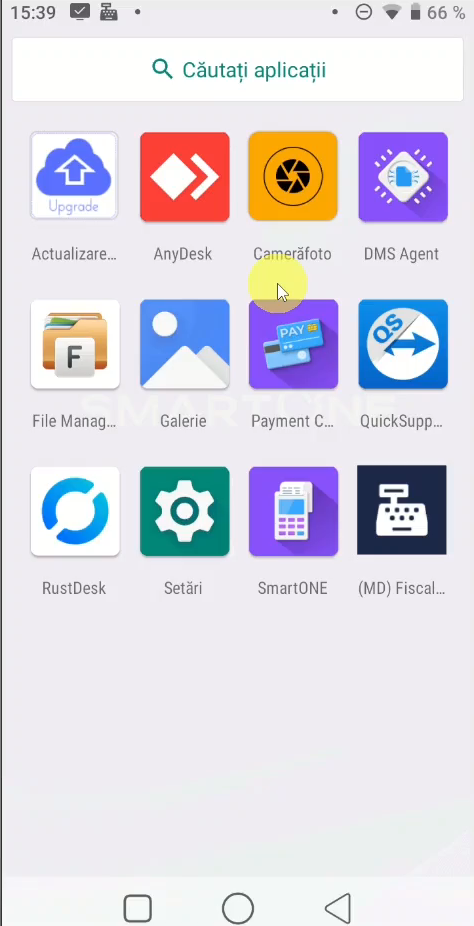
Open SmartONE
In the terminal's app menu, tap the SmartONE icon.
Install MIA
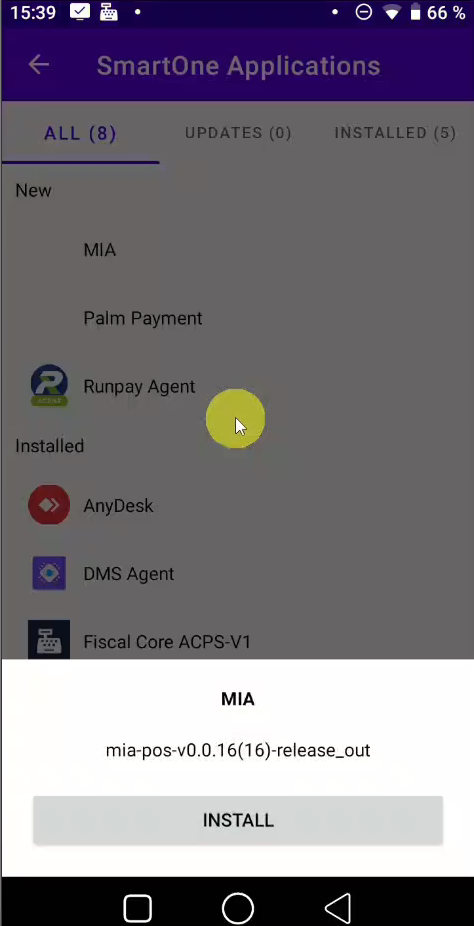
SmartOne Applications opens. Under the New section, tap MIA.
A window with the app version appears — tap the INSTALL button.
MIA is installed
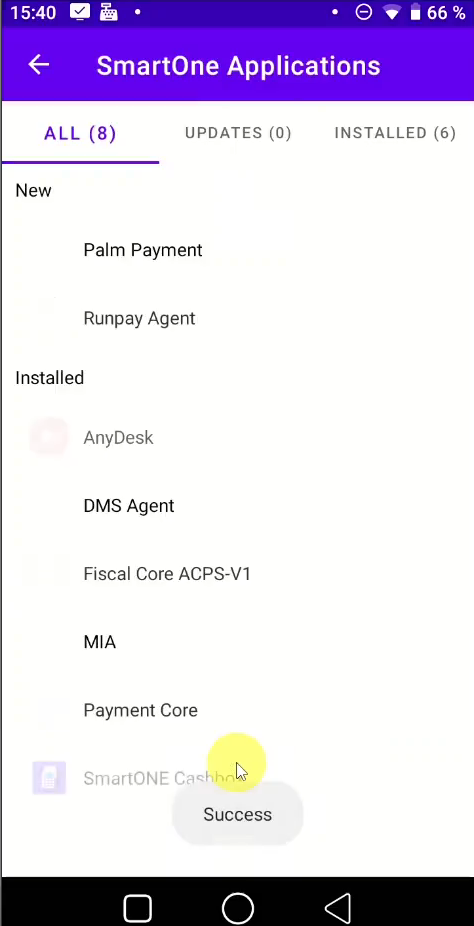
Wait a few seconds. A Success message appears and MIA moves to the Installed list.
Install Palm Payment
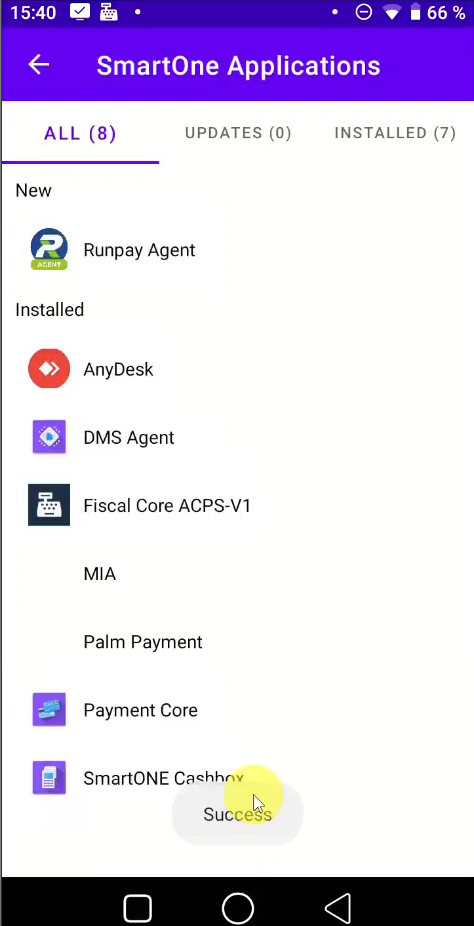
In the same New section, tap Palm Payment and then INSTALL. Success appears again at the end.
Check that both apps appear
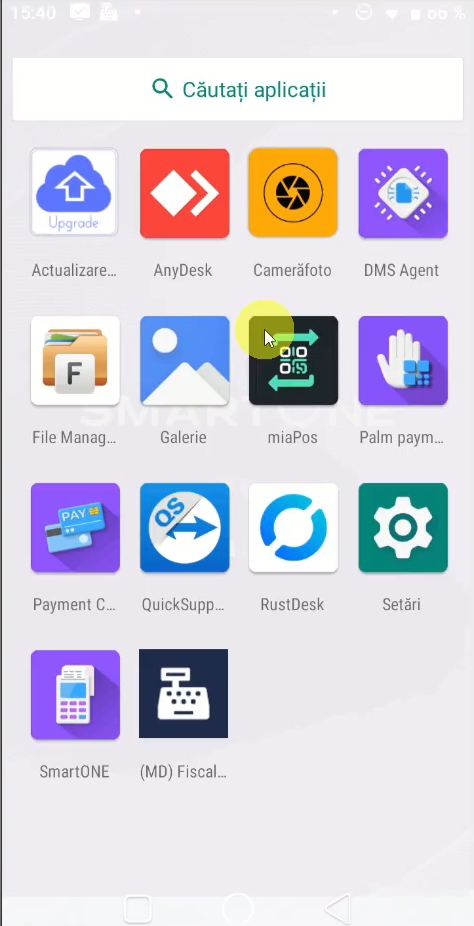
Go back to the app menu. You should now see the miaPos and Palm payment icons.
Part 2 of 3
Configure Palm Payment
Before activating miaPos, open Palm Payment once to grant the required permissions and to view the Terminal ID.
Grant the permission
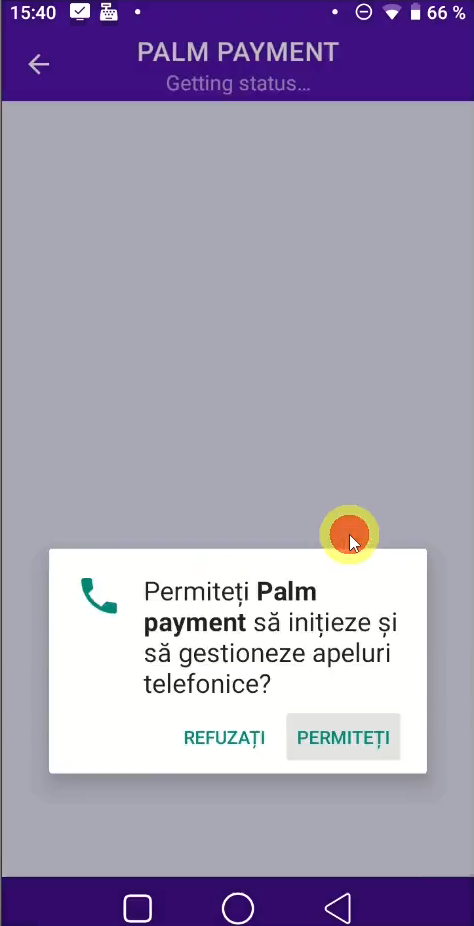
Open Palm Payment. When asked “Permiteți Palm payment să inițieze și să gestioneze apeluri telefonice?” (Allow Palm payment to make and manage phone calls?), tap PERMITEȚI (Allow).
If any other permission requests appear, accept them all (PERMITEȚI).
Note the Terminal ID
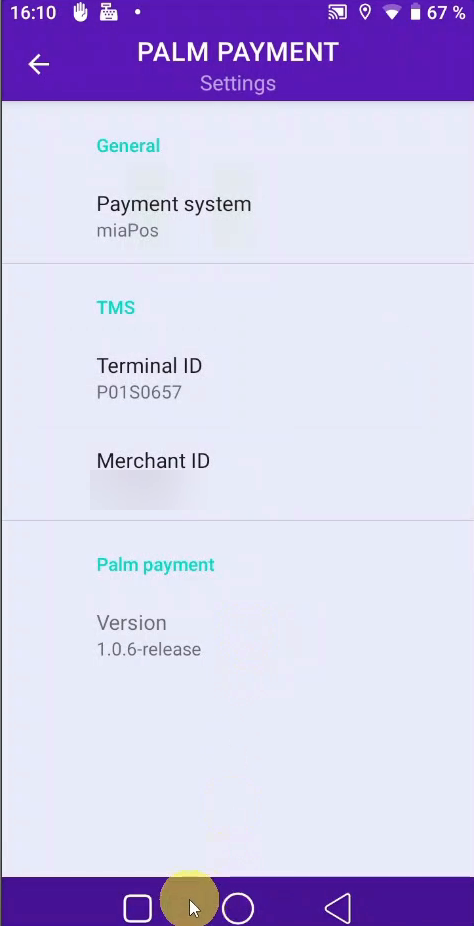
Go to Settings. Under the TMS section you'll find Terminal ID (e.g. P01S0657) and Merchant ID.
Remember the Terminal ID value — you'll enter it during miaPos activation.
Part 3 of 3
Activate miaPos
Now activate the payment app by entering the terminal details.
Open miaPos and pick your bank
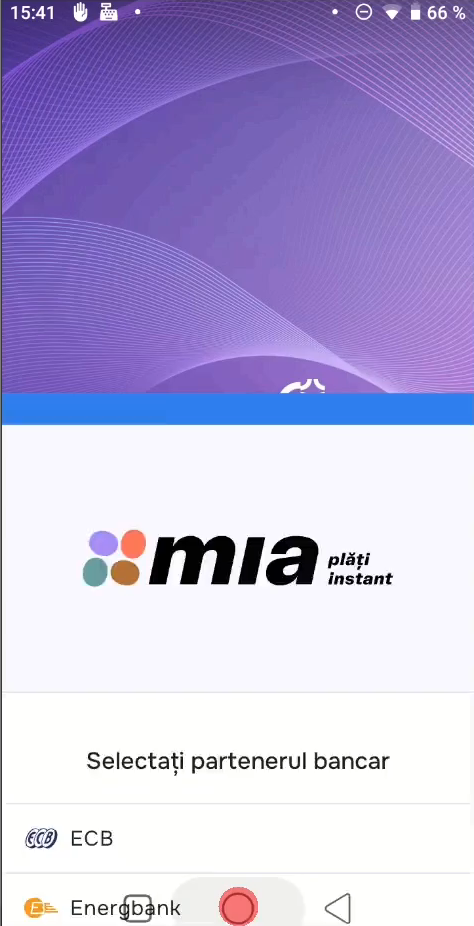
From the menu, open miaPos. On the “Selectați partenerul bancar” (Select banking partner) screen, choose your bank from the list.
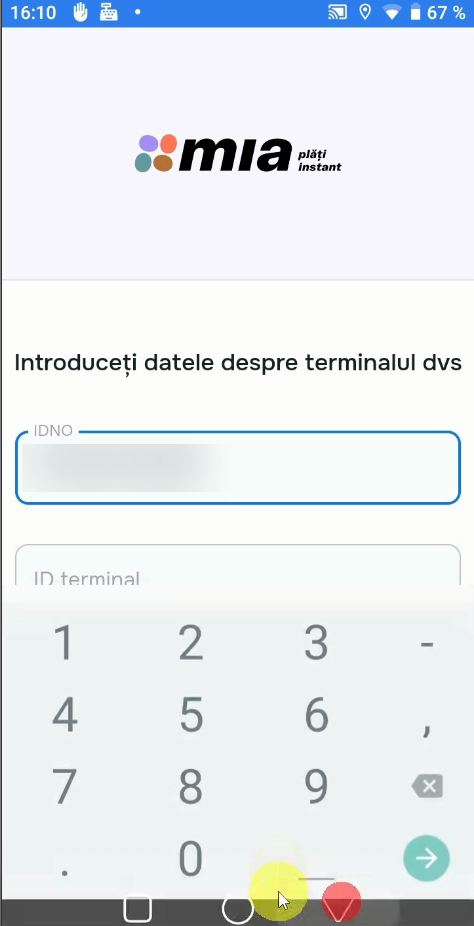
Enter IDNO
On the “Introduceți datele despre terminalul dvs” (Enter your terminal details) screen, fill the IDNO field with your company's fiscal code (13 digits) using the numeric keypad.
Don't have the details? Tap “Trimiteți onboarding pe email” (Send onboarding by email) and you'll receive them by email.
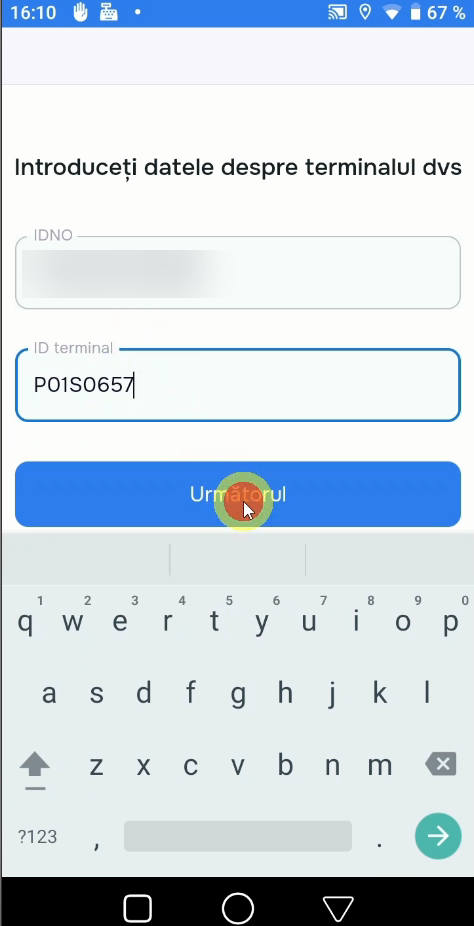
Enter the Terminal ID and tap Next
Fill the ID terminal field with the value you noted in step 7 (e.g. P01S0657).
Once both fields are filled, the Următorul (Next) button turns blue — tap it.
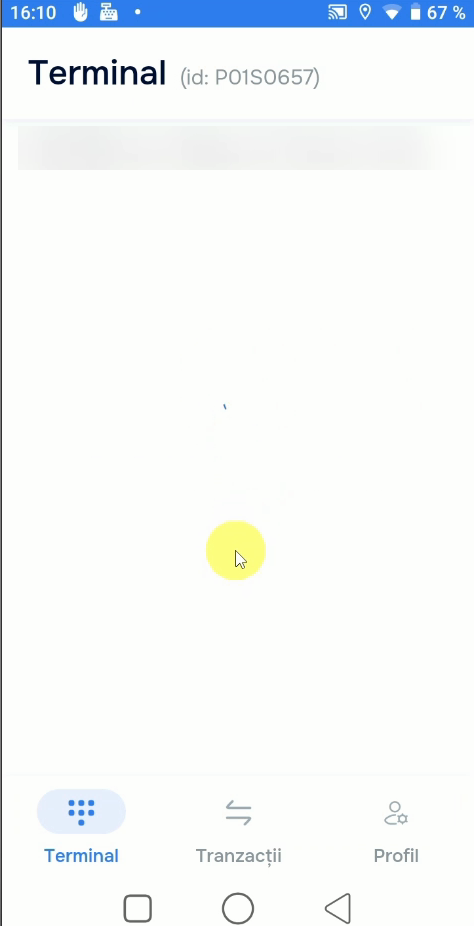
The terminal is activated
miaPos shows the Terminal screen with the ID and the shop address. The terminal is ready to accept payments.
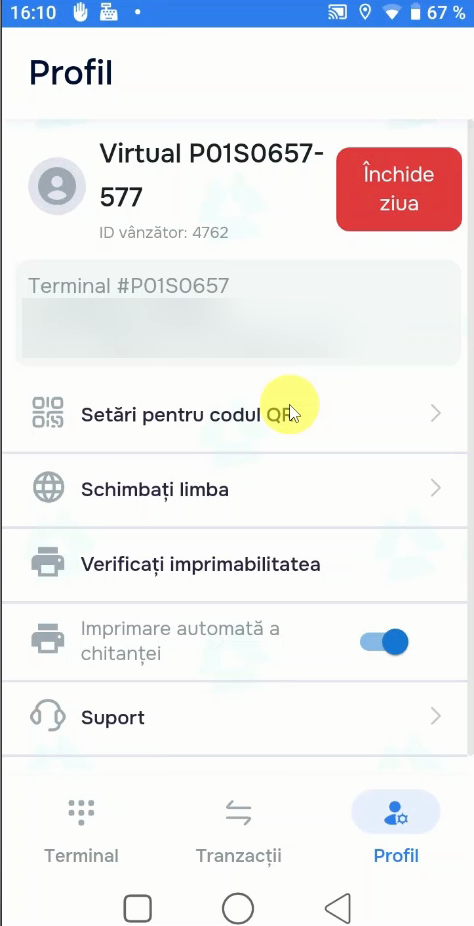
Check the profile
On the Profil (Profile) tab you'll see the seller account and the Închide ziua (Close day) button. From here you can access Setări pentru codul QR (QR settings), Schimbați limba (Change language) and Suport (Support).
✅ Done! The terminal is activated
You can accept your first payment: open the day on the Terminal tab, enter the amount and show the QR code to the customer.
Troubleshooting
| Situation | Solution |
|---|---|
| MIA / Palm Payment don't appear in SmartOne Applications | Check the internet connection and reload the list. If it persists, contact support. |
| The Următorul (Next) button stays grey | Both fields (IDNO + terminal ID) must be filled correctly. IDNO has 13 digits. |
| You don't know the IDNO or terminal ID | Tap “Trimiteți onboarding pe email” or check the email from Finergy. The terminal ID is also visible in Palm Payment → Settings. |
| Error during activation | Make sure you selected the correct bank and the details are exact. Contact miaPOS support. |
Guide based on the activation flow on a SmartOne terminal. Screenshots are illustrative; exact wording may vary slightly depending on the app version.